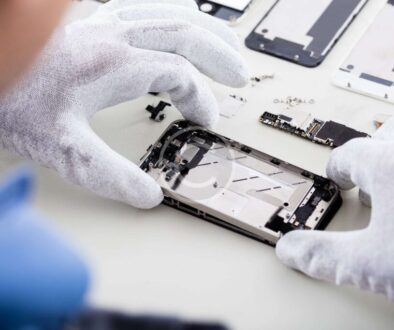

How to get your phone ready for repair
Screen, battery or something else: when your smartphone is broken, you naturally want it working again as soon as possible. Have you already booked an appointment? By following these four tips, you help us carry out the repair smoothly.
1. Keep your data safe
2. Turn off “Find My”
3. Don’t reset your smartphone
4. Bring your passwords and warranty with you
1. Keep your data safe, make a backup
During some repairs, the data on your smartphone may be lost. To avoid unnecessary risks, we recommend that you properly protect your data before the repair by making a backup
iPhone
If you have an iPhone, there are essentially two simple ways to keep your data safe: iCloud and iTunes.
iCloud
To upload your data to iCloud, first connect to a Wi-Fi network, so you don’t transfer large amounts of data using your data plan. Then go to:
Settings → [your name] → iCloud → iCloud Backup
Turn on iCloud Backup here, wait a moment, then tap “Back Up Now”. Here you can check that your backup was completed successfully:
Settings → [your name] → iCloud → Manage Storage
Please note: only 5 GB of storage is free. If you need more space, Apple charges a monthly fee.
iTunes
If you don’t want to save your data in the cloud, you can back up to your computer: on a Mac using Finder, on Windows using the Apple Devices app or iTunes.
To back up using iTunes, follow these steps:
- Open iTunes on your computer
- Connect your smartphone
- Click on the device when it appears in the iTunes menu.
- Click “Back Up Now”
If you also want to back up your Health and Activity data, you need to tick the “Encrypt iPhone backup” box.
Android
Google Drive
Android also has an automatic cloud backup feature (Google Drive). To turn it on, go to:
Settings→ Google → Backup
Or
Settings→ System→ Advanced → Backup
This path may vary depending on your phone. However, in most cases you should find this feature by typing the word “Backup” into the Settings search field.
Here you can turn on Google Drive and enter the account you want to use for the backup. Make sure your device is connected to a Wi-Fi network, so you don’t use up the data allowance on your monthly plan.
After the backup, you can check which data has been saved in “View details” on Google Drive. Is something missing? You most likely need to turn on the backup feature within the app in question.
Local backup
The easiest way to back up to your computer is to use the sync tool developed by your smartphone’s manufacturer.
- Samsung (Smart Switch)
- Huawei & Honor (HiSuite)
- Xiaomi (Mi PC Suite)
- LG (LG Bridge)
- HTC (HTC Sync Manager)
When the device is connected, photos, videos and music can be copied manually from your phone to your computer; however, this process often takes much longer.
Another easy way to back up is to save your important data on an external memory card. You will still need to remove it before the repair.
2. Turn off “Find My” (Find My iPhone)
Remember, this step is required for us to carry out the repair. The “Find My iPhone” service includes Activation Lock, which prevents other people from using your device if it is lost or stolen. To turn it off, go to:
Settings → [your name] → Find My → Find My iPhone
Turn the option off here and confirm with your Apple ID password.
3. Don’t reset your smartphone
There's no need to wipe your phone before bringing it to us: a backup is enough to keep your data safe. If you leave it as it is, we can check that everything works after the repair and give it back ready to use, with your apps and settings. If you have any privacy concerns, let's talk about them when you drop it off.
4. Bring your passwords and warranty with you
To have your smartphone repaired, you should bring all your passwords (Apple ID, PIN, PUK) written on a piece of paper or, at the very least, remember them by heart. That way, we can unlock the phone and carry out the work needed.
Please also bring any document that proves your warranty, so you can get a free repair.